Contents
1.Match the File to the Exact Configuration
A contractor imports a file named “1000W floodlight” and starts the layout. The software accepts it, but the quotation specifies a different optic. The model now answers the wrong question. Before using IES and LDT files, match the manufacturer, model, optic, output setting and test reference to the proposed equipment. Keep the original file with its issue date or revision.

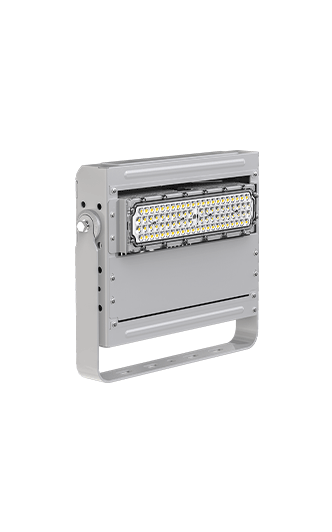
IES LM-63 and EULUMDAT, commonly supplied as LDT, transfer photometric data for calculation. Neither extension certifies a project. Start with the CPS Download Center, then request the exact configuration if its file is unclear. Even a named product such as the Dubhe 1000W floodlight needs a confirmed optical version, not a generic file selected by wattage.
2.Check Absolute Photometry and Output Scaling
An IES file may show −1 in the lumens-per-lamp field to identify absolute photometry. That marker does not mean negative light or a corrupt file. LDT handles absolute data through a different convention, described by DIAL and Lighting Analysts. Check the software’s interpreted luminaire lumens and input watts against the matching report. Do not copy one format’s field rules into the other.
Check whether output scaling is already included before applying another factor. For an assumed point source at normal incidence, 10,000 cd at 5 m gives E = I ÷ d² = 400 lx. An unjustified extra factor of 1.20 gives 480 lx, a 20% overstatement. This simplified direct-light example excludes reflections and is not a site target. Keep output settings separate from maintenance losses.

3.Confirm Direction, Units and Luminous Dimensions
After checking output, inspect the polar curve and photometric orientation. AGi32 warns that laboratory alignment can differ between similar luminaires. Identify the reference plane, then connect it to the physical bracket and aiming schedule. An asymmetric distribution rotated sideways can move light away from the intended area. The CPS floodlight aiming guide explains the resulting hot spots and weak zones.
Check dimensions with the same care. IES luminous dimensions can use feet or metres, while EULUMDAT has its own dimensional fields. Separate the luminous opening from the outer housing. Also distinguish photometric type and symmetry from physical tilt. In an IES file, TILT data describes an output correction associated with lamp orientation. It does not replace positioning and aiming the luminaire in the model.
4.Validate the Imported Data Before Repeating It
Review import warnings before copying the luminaire across the site. Photometric Toolbox documents missing tilt files, truncated candela tables and invalid factors as possible problems. Automatic repair may make a file readable by changing values, but that action does not establish what the laboratory measured. Obtain corrected data from the manufacturer when the underlying information is missing, and retain the warning record.
Place one luminaire in a simple test layout. Check the distribution direction, output, dimensions and settings before building the full DIALux or AGi32 simulation. If converting between IES and LDT, compare the interpreted flux and distribution before and after conversion. A successful import cannot establish flicker performance, corrosion resistance or every colour-quality claim. Request the separate evidence needed for those requirements.
5.Connect the File to the Installed Lighting
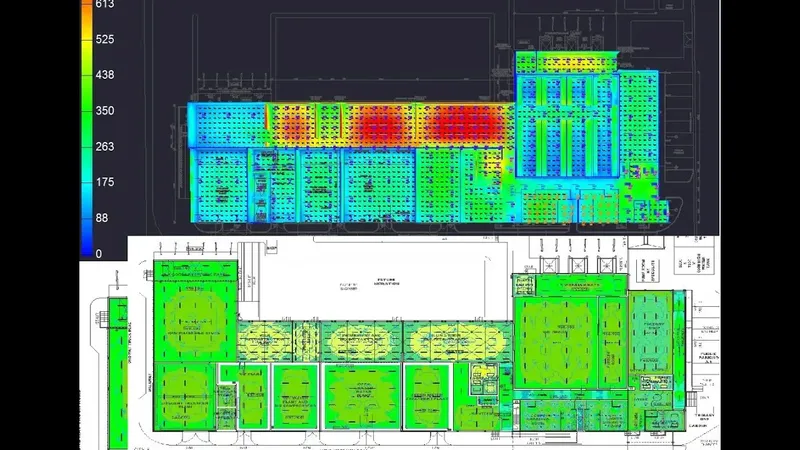
The CPS Sitong badminton hall case describes a 13-court venue upgraded to 102 luminaires rated at 150W, with optical calculations and commissioning. It shows why the selected configuration and layout belong together. The published page does not supply the complete configuration-linked photometric dataset, so its photograph cannot validate a file for a different hall. Request the data for the equipment being proposed.

Finish with a short file register containing the original filename, supplier confirmation, model and optic, test reference, imported output and any adjustments. Carry that identity into the lighting calculation report and final equipment schedule. This record makes later substitutions easier to review. IES and LDT files become useful design inputs when their identity, scaling and direction remain traceable through installation.
6.Technical Sources
Keywords: IES and LDT files, photometric file import, IES file, LDT file, absolute photometry, candela multiplier, photometric orientation, lighting simulation.